How to Update Your Android TV Box: Firmware and Apps
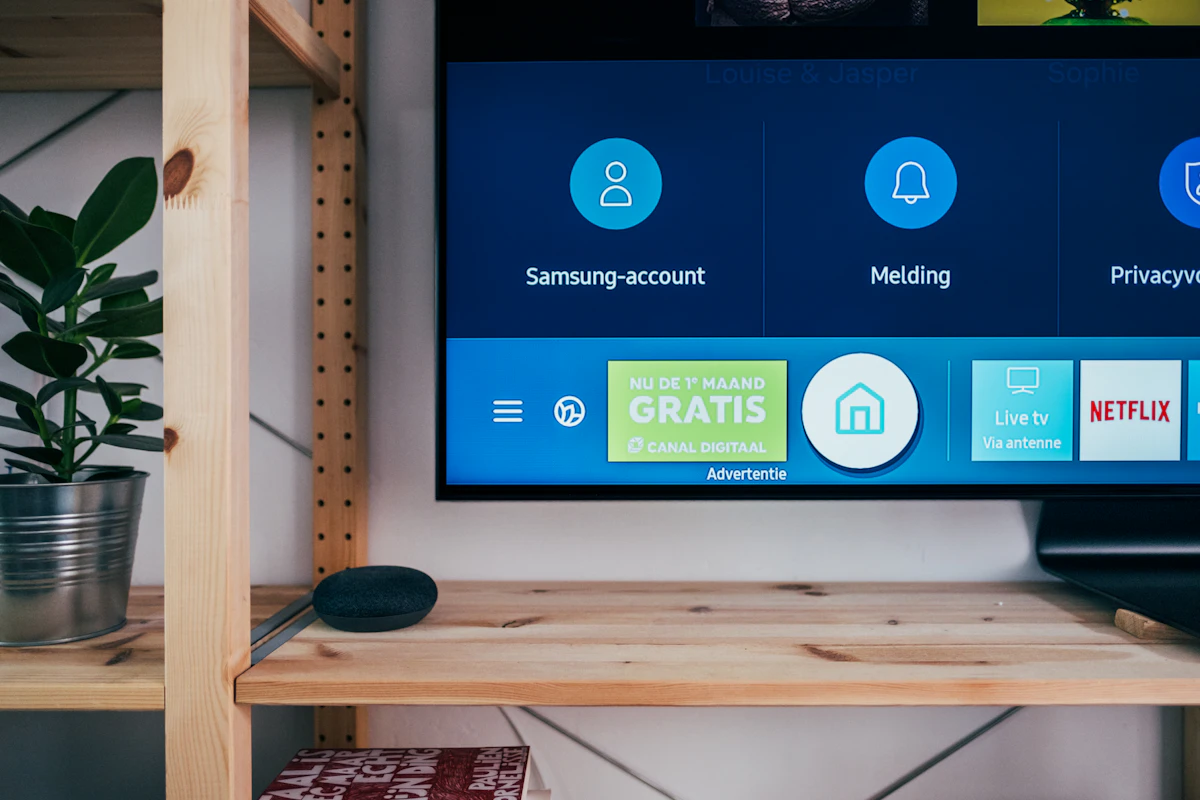
How to update an Android TV box: system updates, Play Store app updates, and why keeping both current fixes IPTV and playback issues.
A slow or glitchy box is often just out of date. Updating the firmware and apps takes a few minutes and fixes most playback and IPTV issues.
Update the system firmware
- Open Settings and find the About or System section.
- Choose System update or Check for updates.
- Install any update and let the box restart.
Certified boxes receive updates automatically; unbranded ones may need a manual download from the manufacturer.
Update your apps
Open the Play Store, go to your apps, and update everything — especially your IPTV player. App updates fix the guide, playback and login issues.
Why it matters
Outdated firmware causes stutter, Wi-Fi drops and codec problems. Outdated apps cause crashes and blank guides. Most "broken" boxes are simply behind on updates.
Set it and forget it
Turn on automatic updates in the Play Store, and check for system updates once a month. A box kept current will keep running smoothly for years.
If an update is not available on an old box, that is a sign the hardware is past its support window.
Need help setting up your TV Box or Firestick?
Instant 1-on-1 setup support and free test playlists on WhatsApp.